Future-Proofing Your Creative Workflow with Cloud Tech
1 September 2026
Every creative professional hits the same wall eventually. You are deep in a project, the deadline is closing in, and suddenly your laptop decides to update, crash, or simply run out of storage. The file you need is on the other machine. The backup drive is at home. The client wants a revision, but you are stuck on a train with a tablet and a prayer.
The cloud is not a magic fix for all of that, but it is the closest thing we have to a safety net that actually scales with your ambition. The problem is that most people treat cloud storage like a digital attic. They dump files there and hope for the best. That is not a workflow. That is a disaster waiting to happen, just with better latency.
I have spent years watching studios and independent creators wrestle with this transition. The ones who succeed do not just buy a subscription and move on. They rethink how they produce, share, and archive work. This article is about that deeper shift. It is about making your creative process resilient, portable, and genuinely future-proof, not just for next year, but for the next decade of hardware and software changes.

The Real Problem Is Not Storage
Let us clear up a common misconception first. Cloud tech is not primarily about having more space. It is about having the right access at the right time. A 2-terabyte external drive is cheap. A 2-terabyte cloud folder is convenient. But neither solves the actual bottleneck in creative work, which is collaboration and versioning.Think about a typical design project. You have the master file, three alternates, a folder called "final_v2_FINAL" and another called "actually_final_3". You email a PDF to a client. They reply with comments in an email thread that is now 47 messages long. Someone else on the team has a different version of the assets. This is not a storage problem. This is a coordination problem.
Cloud technology, when used correctly, collapses that chaos into a single source of truth. The file lives in one place. Everyone works on the same version. Comments happen next to the pixels, not in a separate inbox. The history is preserved automatically, so you can roll back without losing your mind.
But here is the catch. That only works if you commit to a system. You cannot half-use the cloud. You cannot have one person working locally and another working in the shared folder, then try to merge things manually. That is how you get corrupted files and angry phone calls.

Why Local-Only Workflows Are Dying
There was a time when keeping everything on your machine was the professional standard. You had your RAID array, your backup drive, your meticulous folder structure. It worked, as long as you never moved, never collaborated, and never dropped your laptop.That era is over for three reasons.
First, hardware failures are not a matter of if, but when. SSDs die. Power surges happen. Water spills. Theft occurs. A local-only workflow means your entire career is one accident away from being erased. Cloud backups give you a second copy that is geographically distant from your coffee mug.
Second, the nature of creative work has changed. You are no longer just producing a final file. You are iterating in real time with clients, contractors, and teammates who might be in different time zones. The old model of "I finish my part, send it over, wait for feedback" is too slow. Cloud-based collaboration tools let you share a working link, get comments inline, and update the file without sending a single attachment.
Third, software itself is moving to the cloud. Adobe, Figma, Blender, and even video editing tools now offer cloud-based workflows or at least deep integration with cloud storage. The line between "the app on my computer" and "the project in the cloud" is blurring. If you ignore that shift, you are fighting the tools instead of using them.
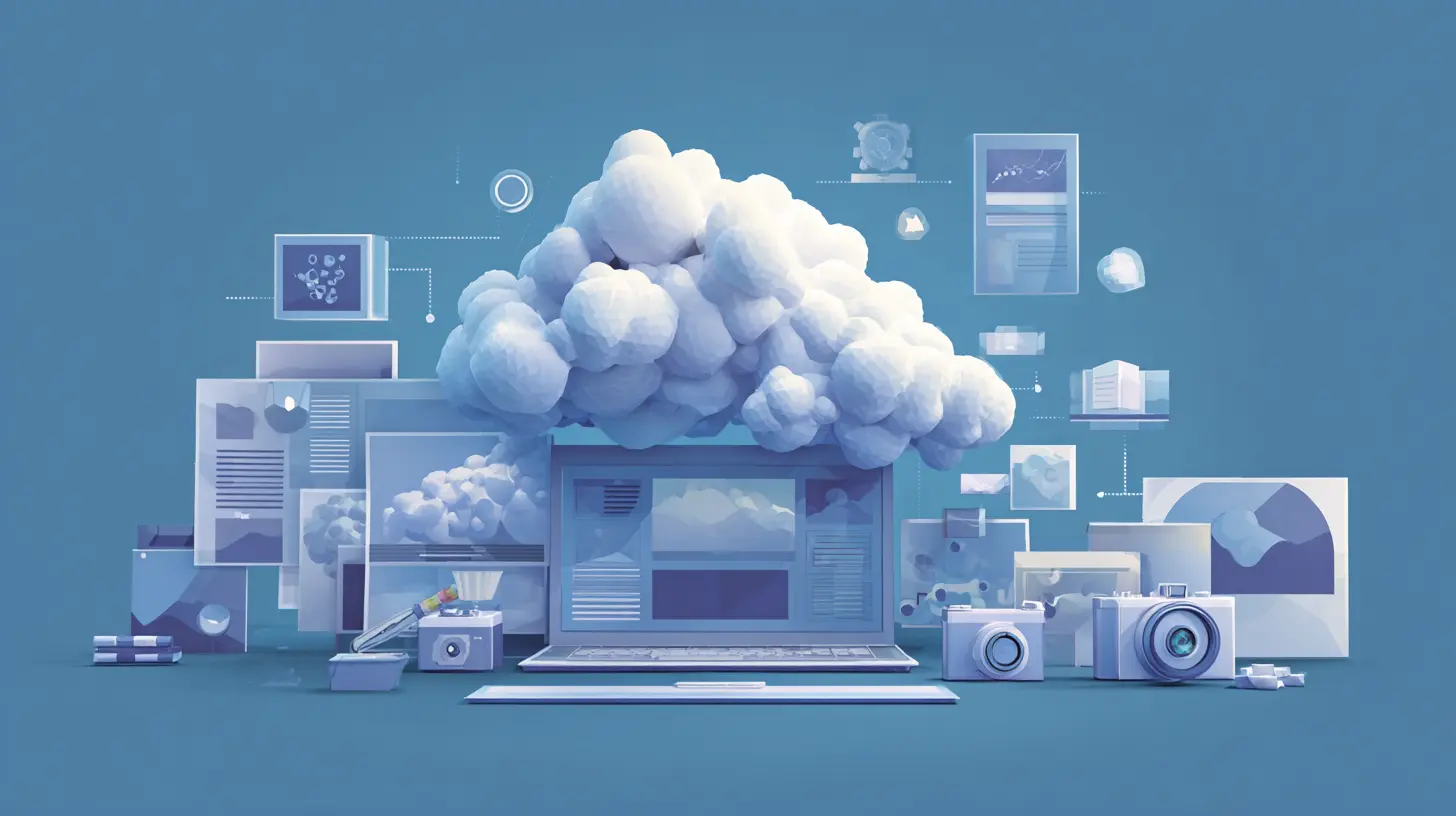
The Architecture of a Cloud-Native Creative Workflow
Let us get practical. A solid cloud-based creative workflow has four layers. You need all of them, and you need to understand what each one does.Layer One: Active Project Storage
This is where your current work lives. It is the folder you open every day. The key here is not just storage, but sync. You want a service that mirrors your files across devices in real time. Dropbox, Google Drive, and OneDrive all do this well, but they have different strengths.For creative work, pay attention to file locking and conflict resolution. If two people are working on the same file simultaneously, you need to know what happens. Some services create duplicate copies. Others lock the file for one user. Neither is perfect, but you need to know which behavior you are getting before you start a collaborative session.
I recommend using a dedicated sync folder for active projects, not your entire hard drive. Keep your system files and applications local. Only sync the project folders you are currently touching. This reduces bandwidth usage, avoids sync conflicts with temporary files, and keeps your cloud account clean.
Layer Two: Version History and Recovery
This is the layer that saves your life. Every major cloud storage service keeps a version history for your files. That means you can go back to yesterday's version, last week's version, or sometimes even older, depending on your plan.Do not treat this as a passive feature. Make it part of your routine. Before you make a major change to a design file, create a named version. In Figma, that is a named version. In Adobe, that might be a "Save As" with a date. In your cloud storage, that might be a manual copy in a separate folder.
The mistake most people make is assuming the cloud keeps everything forever. It does not. Free tiers often keep versions for only 30 days. Paid tiers might keep them longer, but not indefinitely. If you are working on a long-term project, you need to archive important milestones manually.
Layer Three: Collaboration and Review
This is where cloud tech truly transforms your workflow. Instead of exporting a PDF, attaching it to an email, and waiting for tracked changes, you can share a link. The client opens the link, sees the latest version, and leaves comments directly on the canvas or timeline.Tools like Frame.io for video, Figma for UI, and Google Docs for writing have made this seamless. The trick is to use them consistently. Do not fall back to email attachments just because the client is old-school. Train your clients. Send them a short video or a written guide explaining how to comment. Most people adapt quickly once they see how much faster the feedback loop becomes.
One warning here. Real-time collaboration is not always appropriate. If you are doing deep, focused creative work, you do not want someone watching your every mouse movement. Use the cloud for sharing and reviewing, but do not feel obligated to work in a live session. Asynchronous collaboration is often better for creative work because it gives you time to think.
Layer Four: Archival and Cold Storage
This is the layer everyone forgets. Once a project is done, you need to move it out of your active workspace. Keeping everything in your sync folder slows down your system, clutters your search results, and costs more money.For completed projects, use a separate archival bucket. This could be a different folder in your cloud account, or a different service entirely, like Amazon S3 or Backblaze B2. The point is to separate "hot" files that you access regularly from "cold" files that you only need for reference or legal purposes.
I have seen too many creative teams lose track of old projects because they were buried in a shared drive with no organization. Set up a naming convention for archives. Include the project name, the date, and the final version number. This makes it possible to find anything years later, which is essential for client disputes, portfolio updates, or revisiting old work for inspiration.
Choosing the Right Cloud Provider
This is a decision that deserves careful thought, not just a default choice based on what you already have. Here are the factors that matter most for creative work.Sync Speed and Reliability
You want a service that syncs quickly and does not choke on large files. Video files, raw photos, and complex design files can be gigabytes in size. Some cloud services are optimized for documents and spreadsheets, not for massive media files. Look for services that handle large file uploads without timeouts and that offer LAN sync, which speeds up transfers between devices on the same network.File Size Limits
This is a hidden killer. Some services cap individual file sizes at 5 gigabytes or 10 gigabytes. That is fine for most documents, but it is a problem for 4K video or high-res photo shoots. Check the fine print before you commit. If you work with large files regularly, you need a service that supports files up to at least 50 gigabytes, or you need to use a different tool for those specific assets.Collaboration Features
Does the service integrate with your creative tools? For example, if you use Adobe Creative Cloud, you want a storage service that works seamlessly with Adobe apps. If you use Figma, you want a service that supports live links and comments. The more integrated your storage is with your tools, the less friction you will feel.Security and Privacy
This is non-negotiable. Your creative work is your intellectual property. You need end-to-end encryption, at least for files in transit and at rest. You also need to know who has access to your data. Some cloud providers scan your files for advertising purposes. That is unacceptable for client work. Read the privacy policy carefully. If you are working under a non-disclosure agreement, you need a provider that offers enterprise-grade security features like single sign-on and audit logs.Cost Structure
Cloud storage is not free, and the pricing models vary wildly. Some services charge per user, which can get expensive if you have a large team. Others charge per gigabyte, which can balloon if you store a lot of media. Still others offer unlimited storage for a flat fee, but those often have hidden restrictions on file size or upload speed. Do the math based on your actual usage, not the marketing promises.The Trade-Offs You Cannot Avoid
Every cloud solution has downsides. You need to be honest with yourself about what you are giving up.Latency and Internet Dependence
The cloud is useless without a good internet connection. If you work in a remote area, on a plane, or in a client's office with terrible Wi-Fi, you will feel the pain. The solution is to use local sync. Most cloud services let you mark specific folders as "available offline." This keeps a local copy on your device, so you can work without a connection and sync later. But this only works if you plan ahead. You cannot decide to go offline at the last minute and expect your files to be there.Subscription Fatigue
Cloud services are all subscriptions. You pay monthly or yearly, forever. Over time, that adds up. A professional creative might spend hundreds of dollars per year on cloud storage, plus the cost of the creative software itself. You need to budget for this, and you need to periodically review whether you are actually using what you pay for. Cancel unused tiers, downgrade storage you do not need, and consolidate services where possible.Control and Ownership
When your files are in the cloud, you are trusting a third party with your work. That trust can be broken. A service can shut down, change its terms, or be acquired by a company you do not like. You mitigate this by keeping local backups of your most important work. The cloud is not a replacement for your own backup strategy. It is an addition to it.
Common Mistakes and How to Avoid Them
I have watched countless creators stumble on the same issues. Here are the most common ones, and how to sidestep them.Mistake One: Using the Cloud as a Dump
Do not just drag and drop files into your cloud folder without any structure. That creates a digital landfill. You will never find anything, and you will waste hours searching. Instead, set up a clear folder hierarchy before you start. Use a consistent naming convention. Put dates in file names. Create a "Current Projects" folder and an "Archive" folder. Review your structure every few months and clean out what you no longer need.Mistake Two: Ignoring Version Control
The cloud gives you version history, but that does not mean you should be sloppy with your own versioning. If you are working on a design, make a named version at each major milestone. If you are writing, use a tool that tracks changes. If you are editing video, save a new project file at each cut. The cloud is your safety net, but you should not rely on it to remember what you were thinking at each stage.Mistake Three: Sharing the Wrong Way
When you share a file with a client, do not give them edit access to your master file. Create a separate review copy or use a tool that lets you share a read-only link. This protects your work from accidental changes and keeps your master file clean. Also, always set an expiration date on shared links if your service allows it. That prevents old links from floating around forever.Mistake Four: Not Testing Recovery
You should test your recovery process regularly. Once a month, try to restore an old version of a file. Try to download an entire project folder and open it on a different device. This sounds tedious, but it is the only way to know that your cloud setup actually works when you need it. A backup you have never tested is not a backup. It is a hope.Best Practices for a Future-Proof Workflow
Let me give you a concrete set of practices that will serve you well, regardless of which specific tools you choose.Adopt a Hybrid Approach
Do not go all-in on the cloud. Keep your operating system, your applications, and your current project files on your local drive. Use the cloud for syncing, sharing, and archiving. This gives you the speed of local access and the resilience of remote storage.Use the 3-2-1 Rule
This is an old backup rule that still applies. Keep three copies of your important data. Store them on two different types of media. Keep one copy offsite. In a cloud-based workflow, that might look like this: your working copy on your laptop, a local backup on an external drive, and a cloud copy in a different geographic location. This protects you against hardware failure, theft, and regional disasters.Automate What You Can
Most cloud services have desktop apps that sync automatically. Use those. Do not manually upload files. Set up automatic backup for your project folders. If your service supports it, use selective sync to keep only the files you need on each device. Automation removes the human error factor, which is the biggest risk in any workflow.Document Your Workflow
Write down how you use the cloud. This sounds silly, but it is essential for teams. When someone new joins, they need to know where files go, how to name them, and how to share them. A simple one-page guide saves hours of confusion. It also helps you when you return to a project after a long break and have forgotten your own system.Plan for the Long Term
Think about what happens to your files in five years. Will the cloud service you use today still exist? Will it still support the file formats you are creating? The answer is probably yes, but you should not assume it. Periodically export your most important work in open formats. Keep a local copy of your portfolio. Do not let your entire creative history live only in someone else's data center.
Real-World Examples That Show the Difference
Let me give you a few scenarios to illustrate how this works in practice.The Freelance Photographer
A photographer shoots a wedding. She has 2,000 raw files, about 80 gigabytes. She uploads them to her cloud storage while she is still on the drive home. The next morning, she opens her laptop and starts editing. The cloud has already synced the files. She selects the best 500, edits them, and exports a gallery. She shares a link with the couple. They leave comments on their favorite shots. She makes revisions and re-uploads. The final gallery is archived in a separate folder with the date and client name.Without the cloud, she would have to carry a hard drive, wait for the couple to download a zip file, and manage a messy email thread. With the cloud, the entire process is streamlined, and she has a backup of every raw file in case the couple asks for more edits later.
The Video Production Team
A small team is editing a documentary. The editor is in Los Angeles. The colorist is in New York. The producer is in London. They use a cloud-based review tool. The editor uploads a rough cut. The producer watches it and leaves time-stamped comments. The colorist downloads the master file, works on it locally, and uploads the new version. The editor sees the updated file and continues cutting.The key here is that they are not all working on the same file at the same time. They are working in sequence, but the cloud makes the handoff seamless. There is no confusion about which version is current because the cloud keeps a clear history.
The Graphic Designer with a Bad Laptop
A designer has an older laptop that struggles with large files. She uses a cloud-based design tool like Figma. All the heavy processing happens on the server. Her laptop just displays the interface. She can work on a complex design without her machine overheating. She can also open the same file on her tablet or even her phone to show a client a quick preview.This is the real power of cloud tech. It decouples your work from your hardware. You are no longer limited by the machine in front of you. You can work from anywhere, on any device, as long as you have an internet connection.
The Future Is Not About the Cloud, It Is About the Workflow
Here is the honest truth. The cloud is just a tool. It is not a strategy. The strategy is about how you organize your creative process, how you collaborate with others, and how you protect your work. The cloud enables that strategy, but it does not replace it.The people who will thrive in the coming years are not the ones with the biggest cloud storage plans. They are the ones who have built a workflow that is flexible, resilient, and easy to maintain. They have clear systems for naming files, sharing versions, and archiving completed work. They test their backups. They train their clients. They do not panic when a hard drive fails because they know their work is safe.
Start small. Pick one project and move it to a cloud-based workflow. Set up a folder structure. Share a link with a collaborator. Test the version history. See what works and what does not. Then expand from there.
The goal is not to have the most advanced setup. The goal is to have a setup that you trust, that you can rely on, and that lets you focus on the actual creative work. That is what future-proofing really means. It is not about predicting the future. It is about building a system that can handle whatever the future throws at you.
all images in this post were generated using AI tools
Category:
Tech For CreatorsAuthor:

Adeline Taylor