The Ultimate Guide to Setting Up a Home Office with Tech Essentials
31 July 2026
You have decided to work from home. Maybe you already do, and you are staring at a cluttered desk that feels more like a storage unit than a productivity hub. The promise of remote work is freedom, but the reality often involves a sore back, a glitchy webcam, and a Wi-Fi signal that drops right in the middle of a client call. Getting this right is not about buying the most expensive gadgets. It is about understanding how each piece of technology interacts with your body, your workflow, and your space.
This guide walks through the critical decisions you need to make. We will look at the trade-offs between comfort and cost, the mistakes that silently drain your energy, and the specific gear that actually makes a difference. By the end, you will know exactly what to buy, what to skip, and how to set everything up so it works for you, not against you.
The Foundation: Your Physical Space and Ergonomics
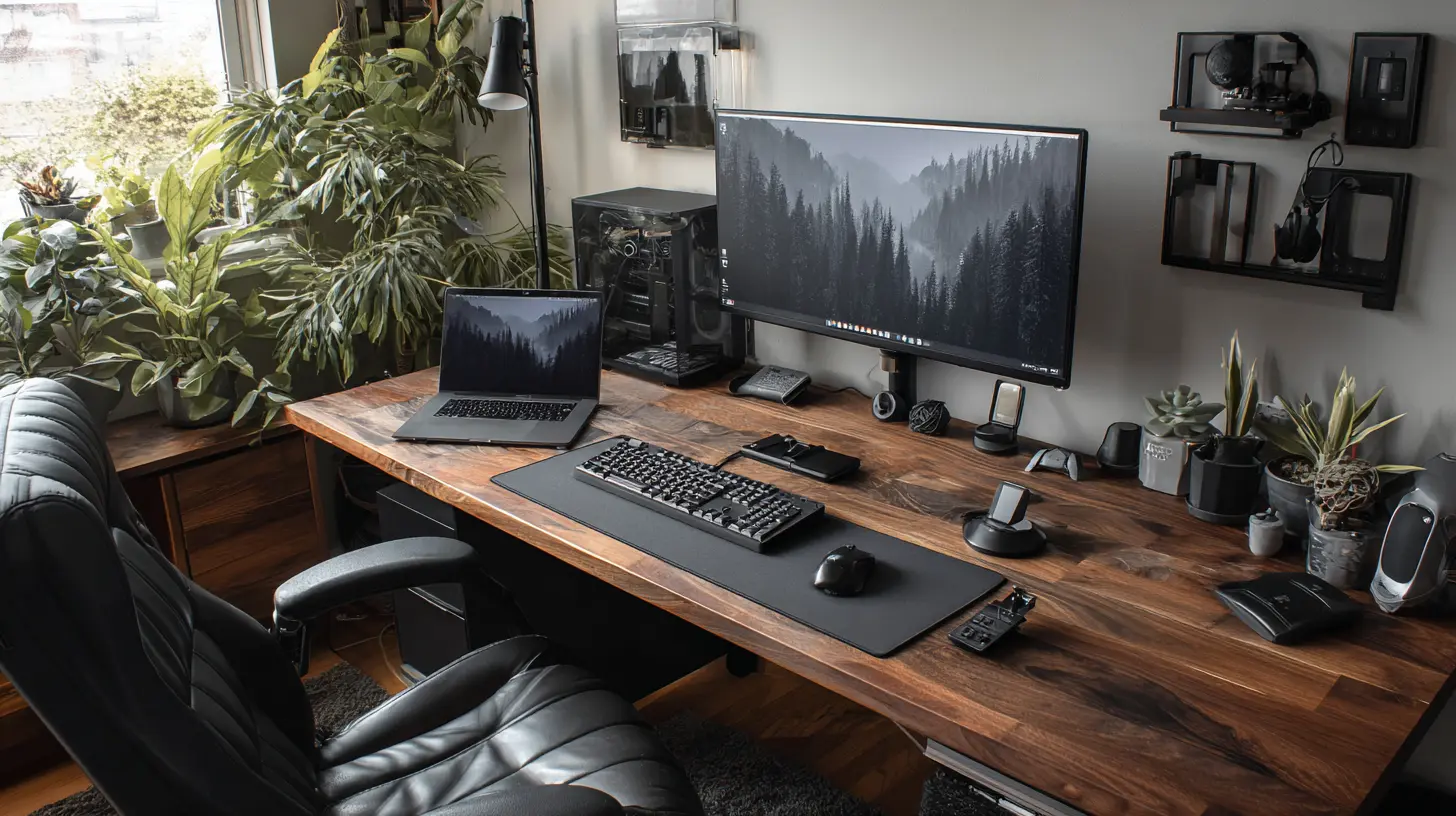
Before you plug in a single cable, you need to address the room itself. A home office is not a desk in a corner. It is a system of light, sound, and air that directly affects your focus. The biggest mistake people make is treating ergonomics as an afterthought. They buy a fancy chair, then hunch over a laptop screen for eight hours. That is not a setup. That is a pain waiting to happen.Why Your Desk Height Matters More Than Your Chair
Most people obsess over chairs but ignore the desk. The reality is that your chair and desk must work as a pair. The standard office desk height is 29 to 30 inches. That works fine if you are average height. But if you are taller than six feet or shorter than five foot four, that standard height forces you into unnatural positions.You have two good options. A sit-stand desk gives you flexibility, but it needs to be sturdy. Cheap motorized desks wobble when you type. A wobbling desk is distracting and will make you avoid standing altogether. Look for a desk with a steel frame and a crossbar. If you cannot afford a motorized model, a manual crank desk works just as well and costs less. The crank mechanism is slower, but it is also less likely to break down after a year.
The alternative is a fixed-height desk paired with a keyboard tray. A keyboard tray lets you adjust the typing surface independently of the desk top. This is a smart move if you use a large monitor or multiple screens. Your monitor should sit directly on the desk, while your keyboard and mouse sit on the tray. This keeps your arms at a 90-degree angle and your eyes level with the top of the screen.
The Chair Is a Long-Term Investment
Do not buy a gaming chair for work. Gaming chairs are designed for short bursts of high-adrenaline activity. They have aggressive lumbar support that feels good for an hour but becomes uncomfortable after four. Office chairs, specifically ergonomic task chairs, are designed for sustained sitting.The key features to look for are adjustable armrests, seat depth, and lumbar support. Armrests should move up, down, in, and out. Seat depth matters because if the seat is too long, it presses against the back of your knees and cuts off circulation. Lumbar support should be height-adjustable, not just a fixed curve.
A common misconception is that you need a chair that costs over a thousand dollars. That is not true. The Herman Miller Aeron is legendary, but it is also expensive. You can get a very good chair from brands like Steelcase, Haworth, or even high-end models from IKEA for half the price. The trick is to test the chair in person if possible. Sit in it for at least fifteen minutes. If it does not feel right immediately, it will not feel better after a month.
Monitor Positioning: The Hidden Cause of Neck Pain
Your neck pain is almost certainly caused by your monitor being too low. Laptop screens are the worst offenders. When you use a laptop on a desk, you look down. Looking down for hours strains the cervical spine. The fix is simple but often ignored.Your monitor should be at eye level. When you sit up straight, your eyes should hit the top third of the screen. If you use a laptop, you need a separate monitor or a laptop stand. A laptop stand raises the screen, but then you cannot type comfortably. That is why you also need an external keyboard and mouse. Yes, that is an extra expense. Yes, it is worth it.
If you use two monitors, place the primary monitor directly in front of you. The secondary monitor goes to the side, angled slightly inward. Do not put them both straight ahead with the bezel in the middle. That forces you to turn your head constantly, which leads to neck strain over time.
The Core Tech: Computer, Connectivity, and Peripherals
Once the physical space is sorted, you need the actual computing hardware. This is where most people either overspend on things they do not need or underspend on things that matter.Choosing Between a Desktop and a Laptop
A desktop gives you more power for the price. You can get a faster processor, more RAM, and a better graphics card for the same money as a mid-range laptop. Desktops also run cooler and quieter because they have larger fans. If you never need to move your workspace, a desktop is the smarter choice.But a laptop offers flexibility. You can take it to a coffee shop, a co-working space, or the living room. The trade-off is that laptops are harder to upgrade and usually have worse thermals. A laptop that runs hot will throttle its performance after thirty minutes of heavy use.
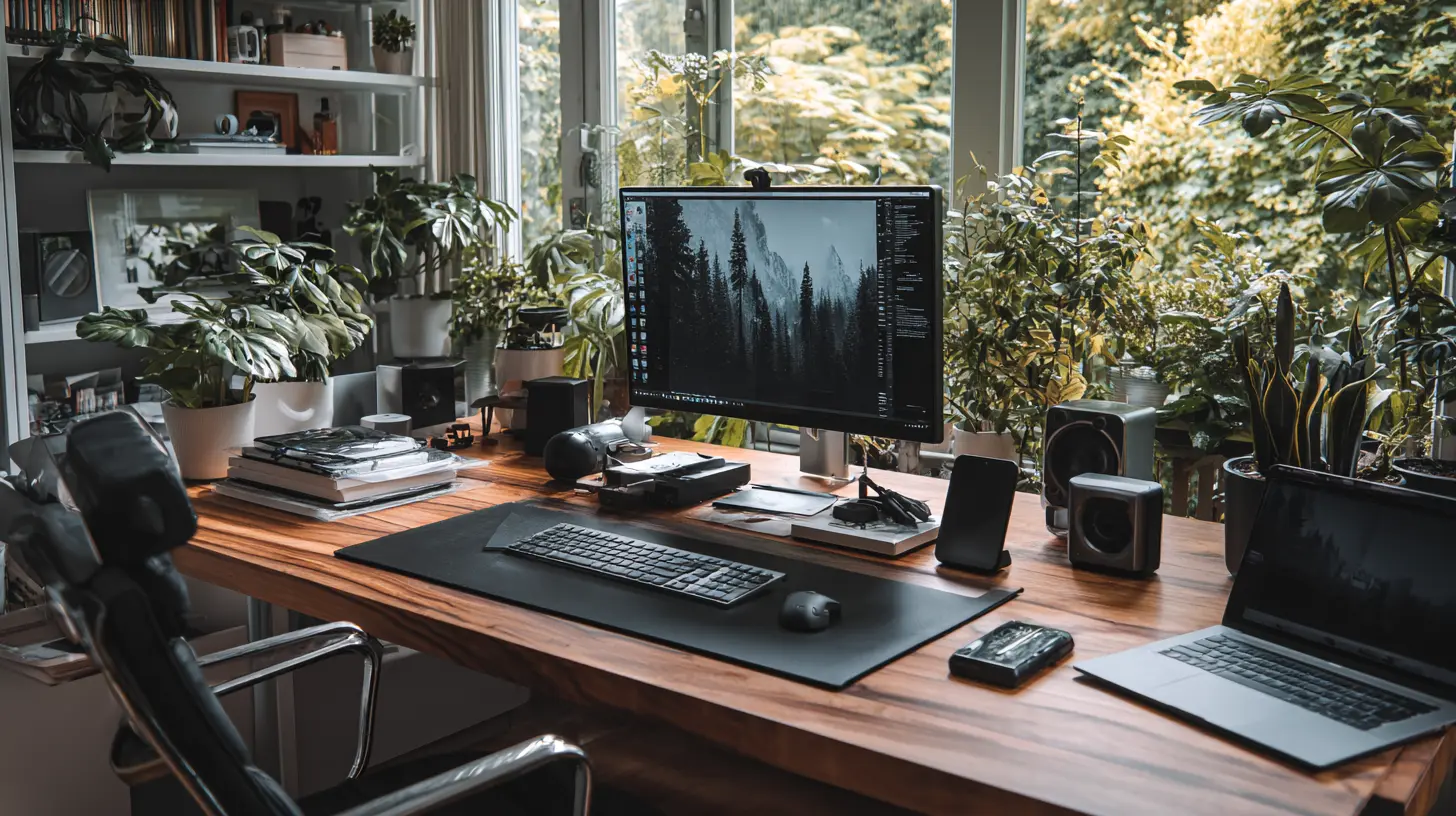
The best approach for most people is a laptop with a docking station. You plug the laptop into the dock, and the dock connects to your monitor, keyboard, mouse, and ethernet cable. When you need to go, you unplug one cable and walk away. This gives you portability without sacrificing a proper desktop setup.
Internet: The Single Point of Failure
Nothing kills productivity like a bad internet connection. Do not rely on Wi-Fi alone. Wi-Fi is convenient, but it is also susceptible to interference from neighbors, microwaves, and walls. For critical video calls, use a wired ethernet connection.If you cannot run a cable from your router to your desk, consider a mesh Wi-Fi system. A single router in the living room is unlikely to provide reliable coverage in a back bedroom. Mesh systems use multiple nodes that talk to each other. They are more expensive than a single router, but they eliminate dead zones.
Also, check your internet plan. Many people pay for gigabit speeds but only need 100 megabits. The reverse is also true: some people think 25 megabits is enough, but they have three people streaming video while they are on a video call. You need at least 50 megabits per person for comfortable remote work, and more if you upload large files.
The Webcam and Microphone: Your Professional Front Door
Your laptop's built-in webcam and microphone are bad. They are fine for a quick chat with a friend, but they make you look unprofessional in a business meeting. The webcam is usually positioned below your eye line, which creates an unflattering angle. The microphone picks up every echo and background noise.A dedicated webcam solves the angle problem. Place it on top of your monitor, at eye level. Look for a webcam that supports 1080p at 30 frames per second. 4K webcams exist, but they are overkill for most video conferencing platforms, which compress the video anyway.
For audio, a USB microphone is a game changer. You do not need a massive broadcast microphone. A small desktop microphone, like a Blue Yeti or a Rode NT-USB, will make your voice sound clear and warm. The key is to position the microphone six to twelve inches from your mouth. Too far away, and it picks up room echo. Too close, and it picks up plosives, the popping sounds from letters like P and B.
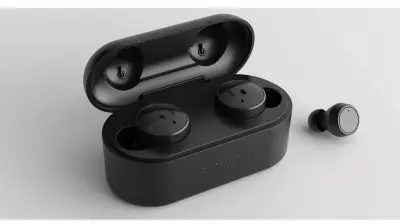
If you do not want a microphone taking up desk space, a headset with a boom mic is a good alternative. Avoid the tiny earbuds with inline microphones. They sound thin and pick up wind noise from your breathing.
Lighting: The Overlooked Productivity Tool
Lighting is not just about seeing your keyboard. It affects your mood, your energy, and how you look on camera. Bad lighting makes you look tired and washed out. Good lighting makes you look alert and professional.The Three-Source Lighting Rule
In photography, they talk about key light, fill light, and back light. The same principle applies to your home office. You want three sources of light.Your key light should be in front of you, slightly to the side. This is your main light source. A desk lamp with a warm LED bulb works well. Do not place it directly above you, because that creates harsh shadows under your eyes.
Your fill light comes from ambient room light. Overhead lights or a second lamp on the other side of the desk reduce the contrast between the bright and dark areas of your face.
Your back light sits behind you, out of the frame. It creates a rim light that separates you from the background. A small LED panel or even a desk lamp pointed at the wall behind you works. This is what gives your video calls that professional, three-dimensional look.
Avoiding the "Sickly" Look
Fluorescent overhead lights have a greenish tint that makes everyone look ill. Replace them with warm white bulbs, around 3000 to 4000 Kelvin. That range mimics natural daylight without being harsh.If you work near a window, position your desk so the window is in front of you or to the side. If the window is behind you, you will be backlit, which makes you look like a dark silhouette on camera. That is the most common lighting mistake in video calls.
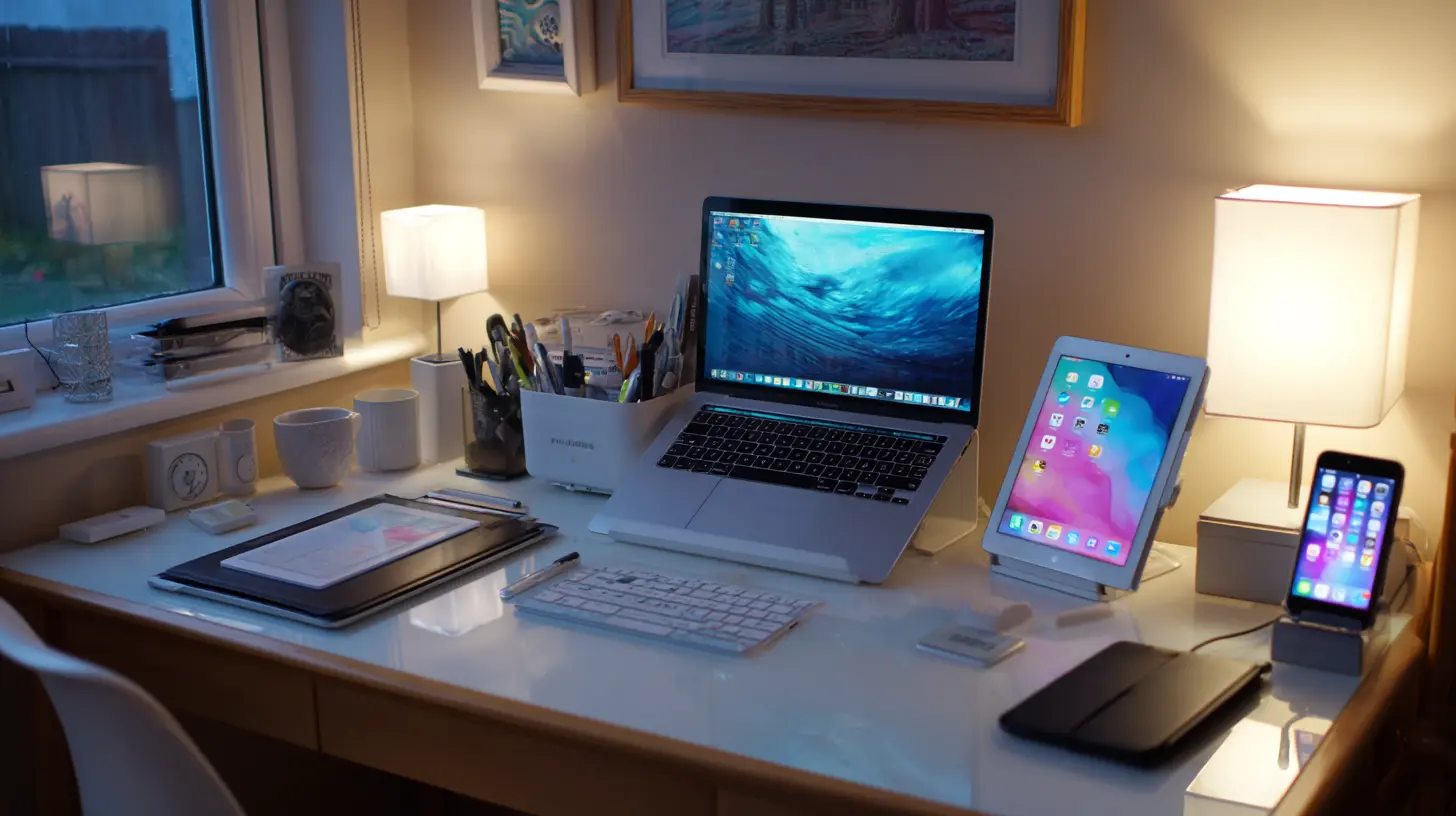
Cable Management and Power
Cable clutter is not just ugly. It is a safety hazard and a source of frustration. When cables are tangled, you cannot easily move your desk or swap out a device. Good cable management takes thirty minutes and saves you hours of annoyance later.The Power Strip Strategy
Do not plug everything into a single wall outlet. Use a power strip with a long cord, at least six feet. Place the power strip under your desk, attached to the underside with adhesive clips. This keeps it off the floor and out of sight.Label each plug with a small piece of tape. When you need to unplug your monitor to troubleshoot a display issue, you will not have to trace every cable. It sounds trivial, but it saves time.
Routing Cables Cleanly
Use Velcro straps, not zip ties. Zip ties are permanent. Velcro straps can be undone and adjusted. Run cables along the back edge of your desk, using adhesive cable clips. For cables that go to the floor, bundle them together and run them along the desk leg.If you have a sit-stand desk, you need extra slack in your cables. Measure the maximum height of your desk and add a foot. If your cables are too short, they will yank on your devices when you raise the desk.
Software and Digital Organization
Hardware is only half the battle. Your digital environment needs just as much attention. A slow computer, cluttered desktop, and noisy notification settings will undermine even the best physical setup.The Case for a Second Brain
You do not need to remember everything. Your brain is for thinking, not for storing to-do lists. Use a note-taking app like Notion, Obsidian, or Roam Research. These tools let you capture ideas quickly and link them together. The key is to have a single system that you trust. If you write things down in three different places, you will lose track.Set up a daily review routine. At the end of each day, spend five minutes updating your notes and planning the next day. This prevents the feeling of waking up and not knowing where to start.
Notification Hygiene
Notifications are the enemy of deep work. Turn off all non-essential notifications on your phone and computer. Email notifications, social media alerts, and app updates are designed to pull your attention away. You do not need to know about a new email the second it arrives. Check email at set times, twice or three times a day.On your computer, use focus modes or Do Not Disturb during work hours. Most operating systems let you schedule these automatically. Set your focus mode to activate at 9 AM and turn off at 5 PM. This simple change can reclaim hours of lost productivity.
Common Mistakes and How to Avoid Them
Even with the best intentions, people make predictable errors when setting up a home office. Here are the ones I see most often.Mistake One: Buying Everything at Once
Do not buy your entire setup in one shopping spree. You will end up with items that do not fit your workflow. Start with the basics: a desk, a chair, a monitor, and a keyboard. Use them for a week. Notice what bothers you. Maybe the desk is too high, or the keyboard is too loud. Then buy the next piece based on actual experience, not a recommendation from a blog.Mistake Two: Ignoring the Acoustic Environment
Hard floors and bare walls create echo. Echo makes you sound distant on calls. You do not need professional acoustic panels. A rug on the floor, curtains on the window, and a few soft items like a cushion or a plant absorb sound effectively. If your office is particularly echoey, hang a tapestry or a blanket on the wall behind your monitor.Mistake Three: Overlooking Air Quality
You breathe the air in your office for eight hours a day. If the air is dry, your eyes and throat will feel scratchy. A small humidifier in winter can make a huge difference. In summer, a fan or an air purifier keeps the air moving. Stale air makes you drowsy. Fresh air keeps you alert.The Budget Breakdown: Where to Spend and Where to Save
Not everyone has a thousand dollars to spend on a chair. You can build a functional home office on a tight budget, but you need to prioritize.Spend on the Chair and the Monitor
Your chair and monitor are the two items that directly affect your body. Spending money here is an investment in your health. A good chair lasts ten years. A good monitor lasts five to seven. These are not expenses you want to cheap out on.Save on the Desk and Accessories
A basic desk from IKEA or a second-hand store works fine. You do not need a motorized sit-stand desk if you are on a budget. A fixed desk with a keyboard tray is perfectly functional. For accessories like a mouse pad, a headset stand, or cable clips, buy the cheapest option that does the job. There is no benefit to an expensive mouse pad.The Middle Ground: Webcam and Microphone
You do not need the most expensive webcam or microphone, but you also should not use the built-in ones. A 50-dollar webcam and a 50-dollar microphone will transform your video call quality. This is a small expense with a massive return.
Real-World Example: A Setup for a Video-Intensive Role
Imagine you are a product manager who spends six hours a day in video calls. Your priorities are different from a writer who spends most of the day typing.For video calls, the most important items are lighting, audio, and internet stability. You need a ring light or a softbox for even lighting. You need a good microphone, either a desktop model or a headset. You need a wired internet connection to prevent dropouts. Your monitor is less critical because you are mostly looking at people's faces, not text.
For a writer, the priorities shift. You need a large, high-resolution monitor for reading and editing text. You need a comfortable mechanical keyboard with a good typing feel. Your audio and lighting are secondary because you are not on camera as much.
This is why buying a generic "home office setup" list is a mistake. Your setup must match your specific work tasks.
Final Thoughts on Building a Home Office That Lasts
A home office is not a one-time project. It is an evolving system. Your needs will change as your work changes. You might start with a laptop on a kitchen table, then graduate to a proper desk, then add a second monitor, then upgrade your chair. That is fine. The goal is progress, not perfection.The most important thing is to pay attention to how your body feels. If your shoulders are tight, your neck hurts, or your eyes are tired, your setup is wrong. Do not ignore those signals. Make small adjustments. Move your monitor. Adjust your chair height. Change your lighting. These small tweaks compound over time.
Do not be afraid to experiment. Try a standing desk for a week. Try a different keyboard layout. Try placing your microphone in a different position. The best setup is the one that disappears into the background so you can focus on the work that matters.
all images in this post were generated using AI tools
Category:
Technology GuidesAuthor:

Adeline Taylor
Discussion
rate this article
1 comments
Isaiah McBride
This guide is a must-read for anyone looking to optimize their home office. It covers crucial tech essentials that enhance productivity, from ergonomic setups to essential software tools, ensuring a comfortable and efficient workspace.
August 5, 2026 at 4:16 AM
Adeline Taylor
Thanks for the feedback! I'm glad you found the guide helpful for creating the perfect home office.