How to Optimize Your PC or Mac for Peak Performance
27 July 2026
Most people treat their computer like a toaster. They plug it in, use it until it slows down, then blame the manufacturer or buy a new one. The truth is that both Windows PCs and Macs require deliberate maintenance and configuration to sustain peak performance over time. This is not about installing "cleaner" apps or running one-click optimizers. Those tools often do more harm than good. Real optimization comes from understanding how your operating system allocates resources, what processes are actually necessary, and where the bottlenecks in your workflow exist.
I have spent over a decade working with systems ranging from low-end laptops to multi-GPU workstations, and I have seen the same mistakes repeated. Users disable services they do not understand, fill their startup folders with junk, and then wonder why their machine feels sluggish. This article will walk you through the specific, actionable steps that actually matter. We will cover storage, memory, background processes, power settings, thermal management, and software habits. By the end, you will have a clear roadmap to make your machine feel noticeably faster without spending money on hardware you do not need.
Understanding the Real Bottlenecks
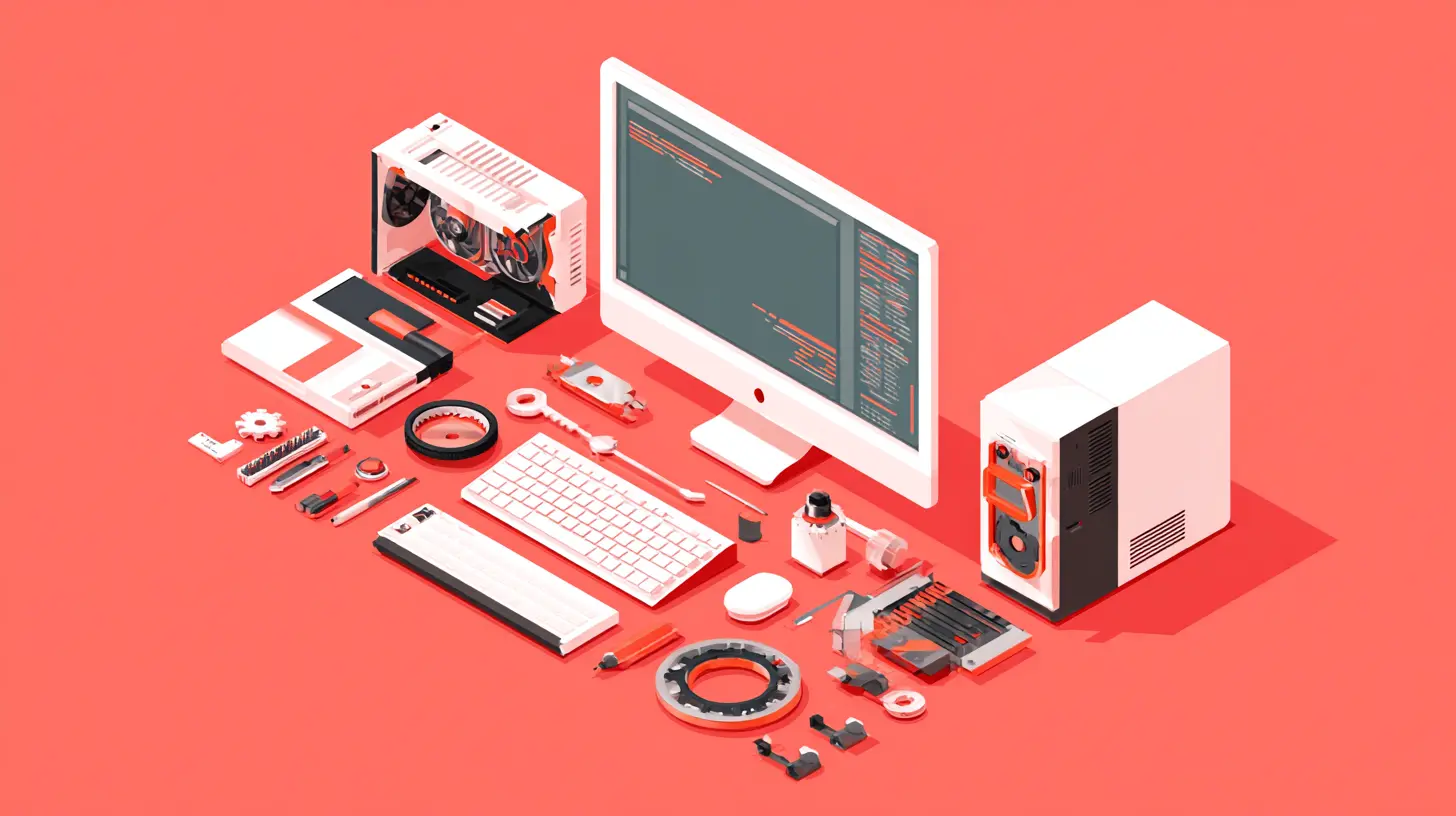
Before you change anything, you need to identify what is actually slowing your system down. There are four common bottlenecks: storage speed, available RAM, CPU throttling from heat, and background software contention. Each one requires a different approach.If your computer takes a long time to boot and launch applications, the problem is almost certainly your storage drive. A traditional hard disk drive (HDD) has mechanical read/write heads that physically move to find data. Even a fast HDD tops out at around 160 MB/s sequential read speed. A SATA solid-state drive (SSD) does around 500 MB/s. An NVMe SSD can exceed 3,000 MB/s. The difference in everyday feel is enormous. If you are still using an HDD as your primary drive, no amount of software tweaking will fix the slowness. You must upgrade to an SSD. That is the single most impactful change you can make.
If your system feels fine during light use but stutters or slows down when you open multiple applications or browser tabs, you are likely running out of RAM. When RAM fills up, the operating system starts using a portion of your SSD or HDD as virtual memory. This is called swapping or paging. Even a fast SSD is orders of magnitude slower than RAM. Opening Task Manager on Windows or Activity Monitor on macOS will show you memory pressure. If you see high usage or swap activity, you need more RAM or you need to reduce what you have open.
CPU throttling is less common for average users but very real for laptops and small-form-factor PCs. When the CPU gets too hot, the system reduces its clock speed to protect the hardware. This causes performance to drop suddenly during tasks like video encoding, gaming, or compiling code. Cleaning dust from fans, reapplying thermal paste, and ensuring proper airflow can restore lost performance without any software changes.
Background software contention is the most overlooked bottleneck. Many applications install helper processes, updaters, and background services that run constantly. Each one uses a small slice of CPU, memory, and disk I/O. When you have twenty of them, the cumulative effect is a system that feels slow even when you are doing nothing. This is where targeted optimization pays off.

Storage: The Foundation of Responsiveness
Upgrade to an SSD if You Have Not Already
If your computer still boots from a spinning hard drive, stop reading and order an SSD. I recommend a 1TB NVMe drive for most users. For older systems that only support SATA, a 2.5-inch SATA SSD is still a massive improvement. The installation process is straightforward for desktops and many laptops, though some Macs have soldered storage that cannot be upgraded. In those cases, external Thunderbolt SSDs are the next best option.Keep at Least 15-20% Free Space
SSDs slow down significantly when they are nearly full. This is because the drive controller needs to find free blocks to write new data, and when space is low, it has to perform garbage collection and wear leveling more aggressively. On both Windows and macOS, you should aim to keep at least 15-20% of your SSD capacity free. If you have a 512GB drive, that means leaving about 80-100GB empty. Do not fill it to the last gigabyte.Disable Hibernation If You Do Not Use It
Hibernation saves the entire contents of RAM to your drive so you can resume exactly where you left off. On a system with 16GB of RAM, the hibernation file can be 16GB or more. If you rarely use hibernation and prefer sleep mode instead, you can disable it. On Windows, open Command Prompt as administrator and type `powercfg /h off`. This frees up that disk space and reduces write wear on the SSD. On macOS, hibernation is handled differently and is not recommended to disable unless you have a specific reason.Regularly Clean Temporary Files
Both Windows and macOS accumulate temporary files from updates, browser caches, and application logs. Over months, this can add up to tens of gigabytes. Windows has a built-in Disk Cleanup tool. Run it, select "Clean up system files," and check everything. macOS has built-in storage management under About This Mac > Storage > Manage. You can also use the `tmutil` command to thin out Time Machine snapshots. Do not use third-party "cleaner" applications. They often remove things they should not and rarely provide meaningful speed gains.
Memory Management: Working Within Your Limits
Understand Memory Pressure
On macOS, the Activity Monitor shows memory pressure as a graph. Green means you have enough RAM. Yellow means you are close to the limit. Red means your system is heavily swapping. On Windows, Task Manager shows memory usage as a percentage and a breakdown by process. If your memory usage is consistently above 80% during normal work, you are likely experiencing slowdowns from swapping.Close Unused Applications and Browser Tabs
This sounds obvious, but people routinely leave dozens of Chrome tabs open. Each tab is a separate process that uses RAM. If you have 20 tabs open with heavy sites like Gmail, YouTube, and Google Docs, you could be using 4-6GB of RAM just for the browser. Use browser extensions like OneTab or The Great Suspender to unload inactive tabs. Alternatively, use a browser that is more memory-efficient. Firefox with proper settings can use significantly less RAM than Chrome for the same workload.Adjust Virtual Memory Settings
On Windows, you can manually set the page file size. The default is usually fine, but if you have plenty of RAM and a fast SSD, you can reduce the page file to save disk space. Set it to 1.5 times your RAM size as a starting point. On macOS, the system manages swap automatically and does not expose a simple user setting. Do not try to force changes via terminal commands unless you fully understand the implications.Consider Adding More RAM
If you consistently run out of memory and closing applications is not practical, adding more RAM is the right solution. For most users, 16GB is the sweet spot. Power users who run virtual machines, edit large video files, or work with large datasets should consider 32GB or 64GB. Check if your system has upgradable RAM slots. Many modern laptops have soldered RAM, which means you cannot upgrade later. If you are buying a new laptop, get as much RAM as you can afford upfront.
Startup and Background Processes: The Silent Performance Killers
Audit Your Startup Items
Every time you boot your computer, a list of programs launches automatically. Many of these are unnecessary. On Windows, open Task Manager and go to the Startup tab. Disable anything that does not need to run at boot. For example, Adobe updater, Spotify, Discord, and printer software can all wait until you actually use them. On macOS, go to System Settings > General > Login Items. Remove anything that is not essential.Disable Unnecessary Background Services
Windows runs a large number of background services. Some are critical, many are not. You can safely disable services like Windows Search if you do not use the search feature frequently. Print Spooler can be disabled if you do not have a printer. Xbox services can be disabled if you do not use Xbox features. Be careful here. Disabling the wrong service can break functionality. Research each service before changing it. A safer approach is to use the "Services" snap-in (services.msc) and set services to Manual instead of Disabled. This way, they start only when needed.On macOS, background services are harder to manage. The `launchctl` command lets you list and disable launch daemons, but this requires root access and caution. A simpler approach is to check the Login Items list and remove anything that is not needed. Also, check your browser extensions. Malicious or poorly coded extensions can run background processes that slow down your system.
Turn Off Visual Effects
Both Windows and macOS use visual effects like animations, transparency, and shadows. These look nice but consume GPU and CPU resources. On Windows, go to System Properties > Advanced > Performance Settings and select "Adjust for best performance." This disables most animations and transparency. On macOS, go to System Settings > Accessibility > Display and enable "Reduce motion" and "Reduce transparency." The difference is subtle on modern hardware but noticeable on older machines.Power Settings: Balancing Performance and Efficiency
Use High Performance Power Plan on Windows
Windows defaults to a Balanced power plan. This works well for laptops on battery, but on a desktop that is always plugged in, it leaves performance on the table. Switch to the High Performance plan. If you have an AMD Ryzen system, also check that the power plan does not disable the "AMD Ryzen Balanced" plan, which is optimized for the CPU's boosting behavior. On laptops, you may want to create a custom plan that uses high performance when plugged in and balanced when on battery.Disable CPU Throttling in macOS
macOS aggressively throttles CPU performance to save battery and reduce heat. If you have a MacBook that you use plugged in most of the time, you can disable some of this throttling. Use the terminal command `sudo pmset -a hibernatemode 0` to prevent deep sleep, and consider using a utility like Turbo Boost Switcher to disable Turbo Boost when you need consistent performance for tasks like compiling or rendering. Be aware that disabling Turbo Boost can reduce peak performance but also reduces heat and fan noise.Manage Fan Curves
On desktop PCs, you can control fan speeds through the BIOS or software like SpeedFan or the motherboard manufacturer's utility. Set a more aggressive fan curve that ramps up earlier. This keeps components cooler and prevents thermal throttling. The trade-off is more noise. On laptops, you often cannot control fans directly, but you can use a cooling pad to improve airflow. On Macs, third-party apps like Macs Fan Control let you manually set fan speeds. Running fans at higher speeds reduces component lifespan slightly but prevents performance loss from heat.
Thermal Management: The Overlooked Performance Factor
Clean Dust from Internals
Dust acts as an insulator. It blocks airflow and clogs heatsinks. Over time, this causes temperatures to rise. Open your desktop case or laptop bottom panel and use compressed air to blow out dust. Focus on the CPU cooler, GPU fans, and power supply vents. Do this every six months. For laptops, you may need to remove the bottom cover and carefully clean the fan blades with a soft brush. If your laptop has never been cleaned and is several years old, you will likely see a 10-15 degree Celsius drop in temperatures after cleaning.Replace Thermal Paste
Thermal paste between the CPU and its cooler degrades over time. After 3-5 years, it can become dry and less effective. Replacing it with a high-quality paste like Arctic MX-6 or Thermal Grizzly Kryonaut can reduce temperatures by 5-10 degrees. This is a moderately advanced procedure that requires removing the cooler, cleaning off the old paste with isopropyl alcohol, and applying a pea-sized amount of new paste. If you are not comfortable doing this, find a local repair shop. The performance gain is real, especially on laptops with limited cooling.Improve Airflow
Desktop cases often have poor cable management that blocks airflow. Route cables behind the motherboard tray if possible. Ensure that intake fans are not blocked by dust filters that are too fine. For laptops, avoid using them on soft surfaces like beds or couches. A hard, flat surface allows air to flow through the bottom vents. If you use a laptop on your lap, consider a lap desk with a hard surface.Software Habits: Long-Term Maintenance
Keep Your Operating System Updated
Both Windows and macOS release updates that include performance improvements, security fixes, and driver updates. Delaying updates means you miss out on these optimizations. Set your system to install updates automatically, but schedule them for a time when you are not using the computer. Major version updates (like Windows 11 23H2 or macOS Sonoma) can sometimes introduce regressions, so it is wise to wait a few weeks after release to let early adopters find bugs.Uninstall Bloatware
Windows comes with a lot of pre-installed applications that most people never use. Candy Crush, Xbox Game Bar, OneDrive (if you do not use it), and various manufacturer utilities. Uninstall them through Settings > Apps. On macOS, Apple's built-in apps cannot be removed easily, but you can hide them. Third-party Macs often come with trial software like antivirus or office suites. Remove those immediately. They consume resources and often nag you to purchase.Use a Lightweight Antivirus
Windows Defender is now excellent and built into Windows. You do not need third-party antivirus software. Programs like Norton, McAfee, and Avast are resource hogs that slow down your system. They run constant background scans and pop up notifications. Uninstall them and rely on Windows Defender combined with common sense. On macOS, the built-in XProtect is sufficient for most users. Third-party Mac antivirus is rarely needed unless you handle sensitive data in a corporate environment.Avoid "Optimizer" Software
There is a whole industry of software that claims to clean your registry, defragment your SSD, or boost your FPS. Most of it is snake oil. Registry cleaners on Windows are particularly dangerous. They can remove entries that are needed for applications to run. SSD defragmentation is actively harmful because SSDs do not benefit from defragmentation and excessive writes reduce their lifespan. If you want to optimize your system, use the built-in tools we have discussed. They are free, safe, and effective.
Real-World Examples and Trade-Offs
Let me give you a concrete example. A friend of mine had a 2017 MacBook Pro that was painfully slow. It took two minutes to open Safari. The system would beachball constantly. He was about to buy a new MacBook. I checked his storage. The 256GB SSD had 5GB free. That is less than 2% free space. The drive was struggling to write new data. I helped him move large files to an external drive and delete old downloads. He freed up 60GB. The system immediately felt faster. No hardware upgrade needed. The bottleneck was entirely storage space.Another example: a Windows desktop used for gaming. The user had 32GB of RAM and a fast NVMe drive, but games would stutter after 30 minutes. I checked temperatures. The CPU was hitting 95 degrees Celsius. The cooler was a small low-profile unit that was clogged with dust. After cleaning and reapplying thermal paste, temperatures dropped to 75 degrees under load. The stuttering stopped. The performance was there all along, but thermal throttling was hiding it.
There are trade-offs. Disabling visual effects makes the interface look dated. High performance power plans drain battery faster on laptops. Aggressive fan curves are louder. You have to decide what matters more to you. If you value silence over peak performance, keep the balanced power plan and let the system throttle. If you need every ounce of speed for work, accept the noise and heat. There is no one-size-fits-all answer.
Common Misconceptions
One common misconception is that more cores always mean better performance. For single-threaded tasks like web browsing or office work, a fast dual-core CPU can outperform a slow octa-core CPU. Do not assume that a high core count is always better for your use case.Another misconception is that closing background processes always helps. Some processes are essential for system stability. Disabling Windows Update, for example, can leave you vulnerable to security exploits. The trade-off between performance and security is real. Always prioritize security.
A third misconception is that Macs do not need maintenance. They do. Macs accumulate temporary files, background processes, and thermal dust just like PCs. The difference is that macOS hides these things better, so users do not notice until performance degrades significantly.
Best Practices for Sustained Performance
Set a regular maintenance schedule. Once a month, run Disk Cleanup on Windows or Storage Management on macOS. Once every three months, check your startup items and remove anything new that has been added. Once every six months, clean dust from your system. Once a year, replace thermal paste if you are comfortable doing so.Monitor your system's performance with built-in tools. Task Manager on Windows and Activity Monitor on macOS are your friends. Learn to read them. When you see disk usage at 100% for no reason, investigate. When you see memory pressure in the red, close tabs. When you see CPU temperatures above 90 degrees, clean your system.
Finally, accept that no amount of optimization will overcome hardware that is simply too old or too weak for your workload. If you have a 10-year-old laptop with 4GB of RAM and an HDD, you can optimize it to the ends of the earth and it will still struggle with modern websites. At some point, the right decision is to upgrade your hardware. Optimization extends the life of your machine, but it does not make it immortal.
Conclusion
Optimizing your PC or Mac for peak performance is not about magic tricks or expensive software. It is about understanding what your hardware needs and removing the obstacles that prevent it from running well. Upgrade to an SSD if you have not. Keep enough free space. Manage your RAM usage. Disable unnecessary startup items and background services. Control your power settings. Keep your system cool and clean. Use built-in tools instead of third-party cleaners. And above all, develop good software habits.Your computer is a tool. Treat it like one. Maintain it regularly, and it will serve you well for years. Neglect it, and you will find yourself shopping for a new one long before you need to. The choice is yours.
all images in this post were generated using AI tools
Category:
Technology GuidesAuthor:

Adeline Taylor
Discussion
rate this article
1 comments
Kingston Gomez
Imagine your device running like new again, unlocking hidden speed and responsiveness. But what if the answers lie buried in settings you've never explored? Dive deep into the unknown, and you might just unleash your computer's true potential...
August 3, 2026 at 2:23 AM
Adeline Taylor
Absolutely! Exploring those hidden settings can make a huge difference in performance. It's worth the dive to unlock your device's full capabilities.